 Made in DeveloperHub
If you wish to change DeveloperHub UI text that shows to your readers, which defaults to English, then you can modify it through two ways:
Changing the Language in the documentation section's settings on the Manage Sections page.
Modifying the javascript.
Which Text Can be Changed?
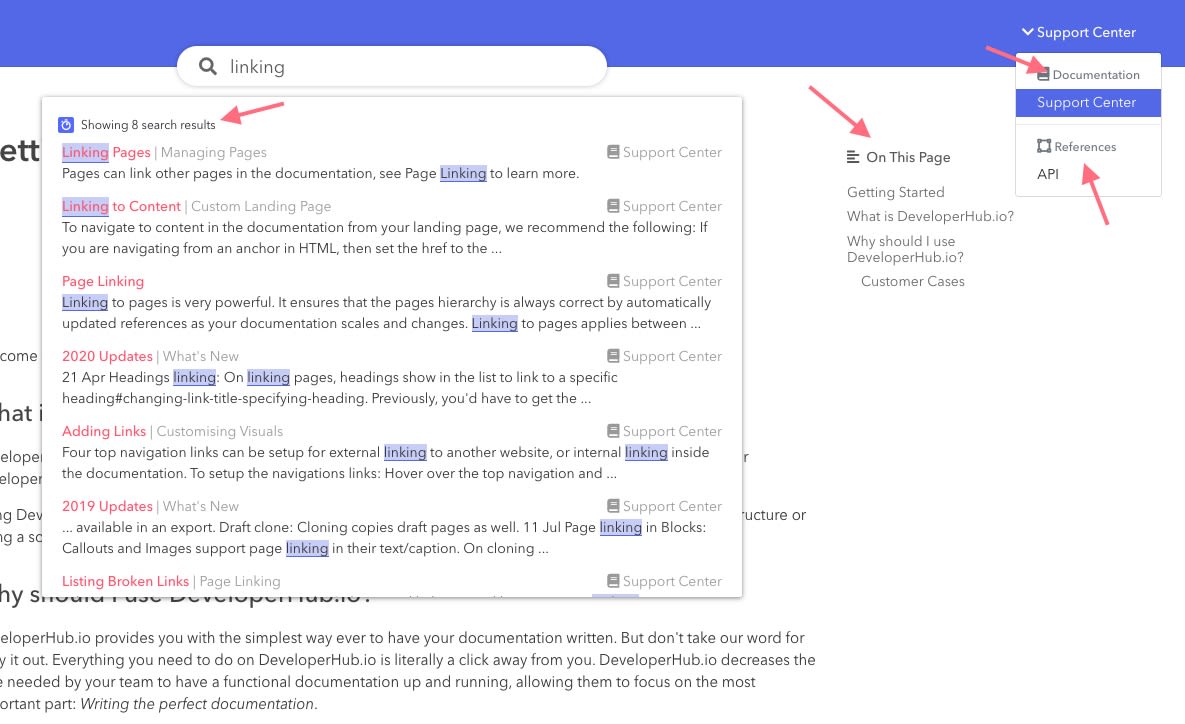
All text on the UI that we provide that shows to your reader can be translated. This includes text in landing page, search, table of contents as well as the version and section pickers.
The text that is available to be translated is detailed as such:
Translate UI Text
To specify in which language should the UI text show in:
Open Manage Sections (section menu → settings cog).
Select the documentation.
Next to Language, select the language to translate the UI text to.
Each documentation can have its own translation.
At the moment, we have support for English, French, Deutsch and Spanish. If there is a language which you need for your documentation which we do not provide yet, then please contact us.
How to Customise UI Text
By using custom javascript, you can modify any or all of the default translations. For example, you can add a script to your HEAD tags to override table of contents and search results as such:
Some translations contain variables such as search.results which will be replaced by the number of search results. The question mark indicates where the number will be replaced and must be kept in the translation.
Other translations such as consent.text have plus signs where a URL should be added.
Change Translation According to Content
To change the UI text according to which version or which documentation is selected, then you can do that with custom javascript. Example code that you can use: